Write
Made to help you write the book you planned, or the one that surprises you along the way.
Write keeps the manuscript at the center of the screen, with the rest of the project close enough to help without crowding the page. Follow a detailed outline, discover the story sentence by sentence, or move between the two as the draft takes shape.
Your outline is still alive
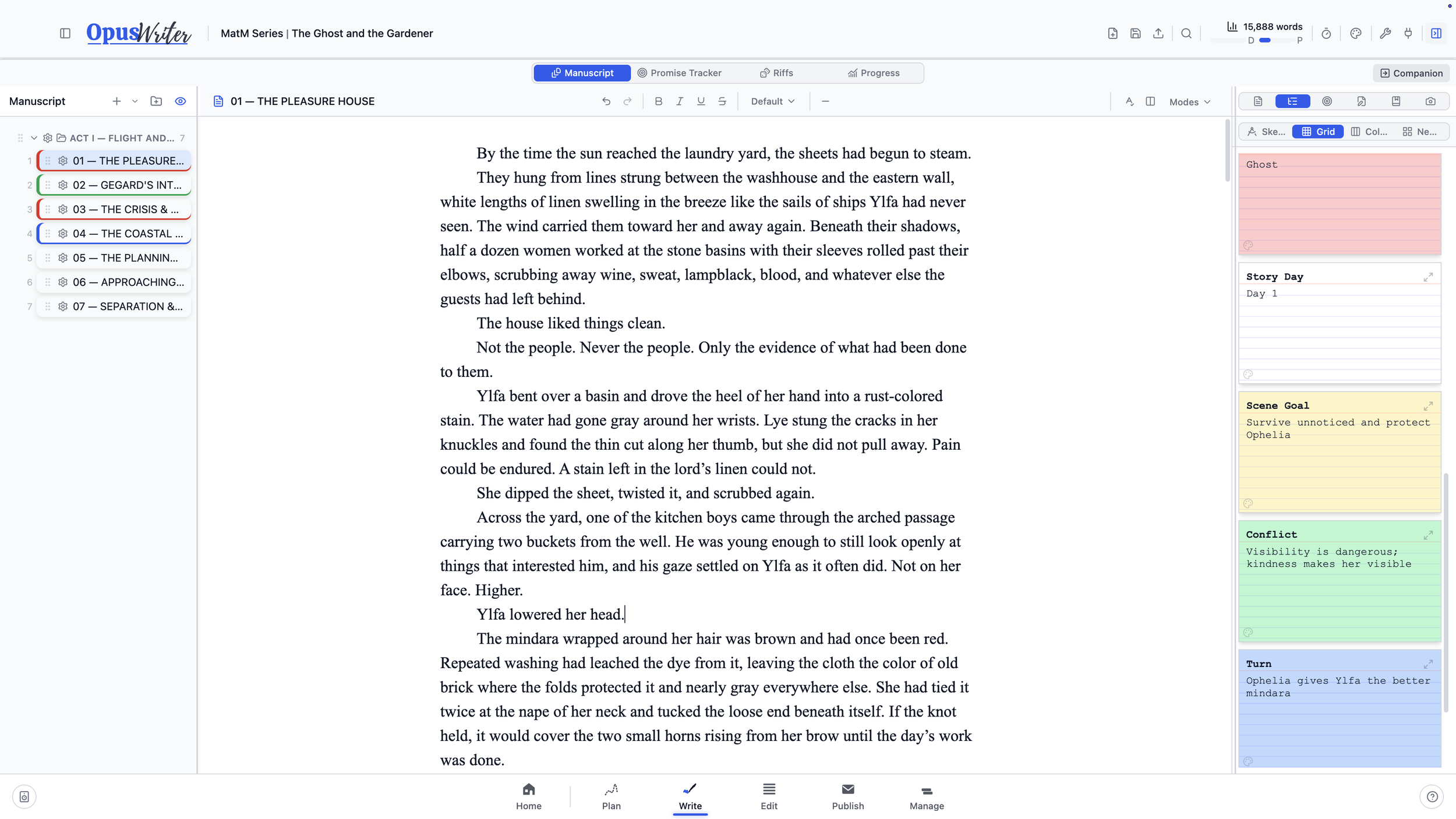
If you built an outline in Plan, it appears beside your manuscript in Write. This isn’t a frozen reference copy. Sketch, Grid, Column, and Nesting remain fully editable, and every change stays synchronized with Plan and the structure of the book.
Rename or move a chapter, revise a synopsis, change the point of view, or rethink an entire sequence without leaving the draft. Your outline can keep up with the book you’re actually writing instead of preserving the one you imagined months ago.
Promises and consequences
Every draft creates loose ends in both directions.
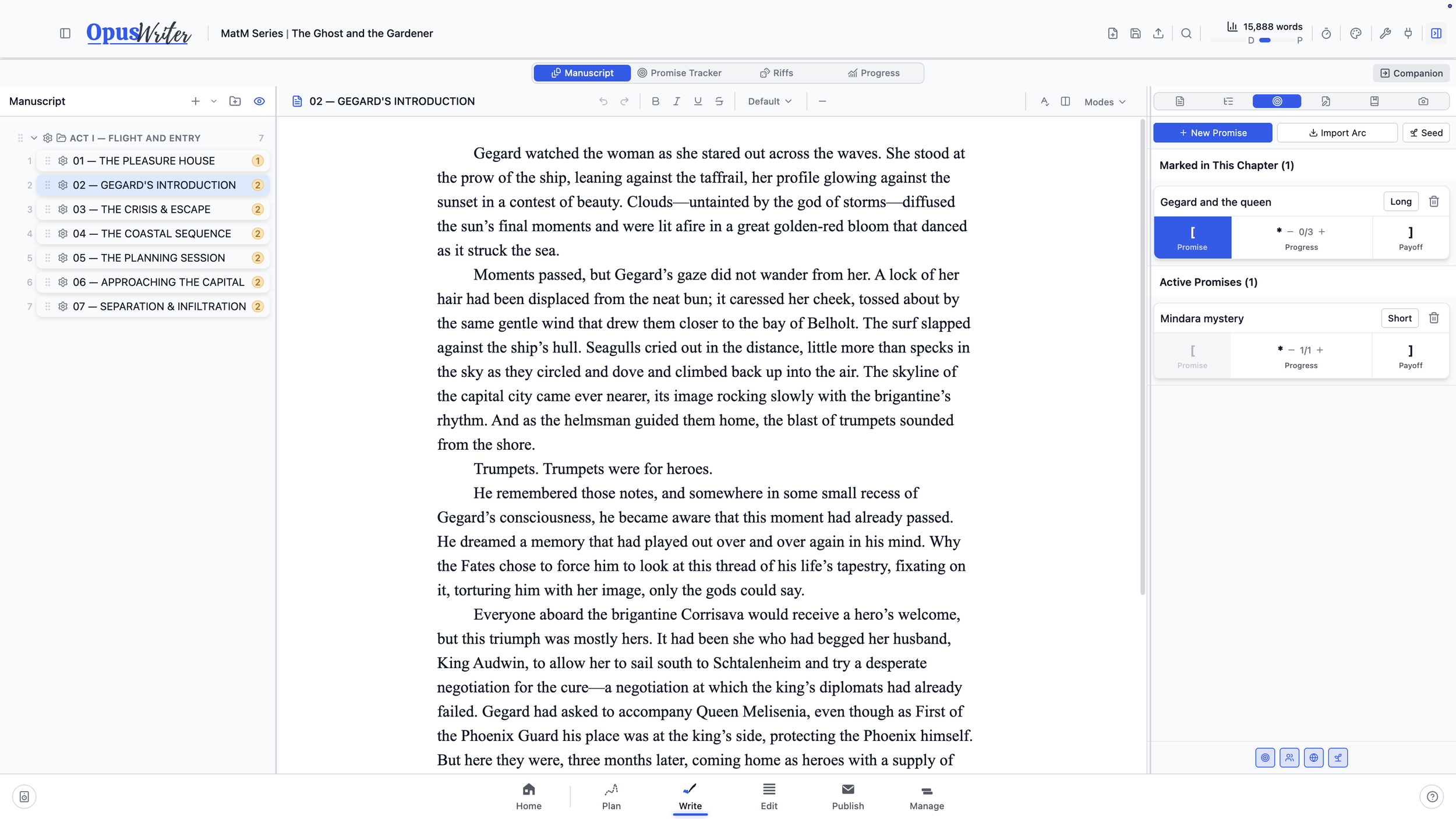
Some point forward: a clue, an unanswered question, a developing relationship, or any other promise you’ve made to the reader. Promises tracks where each thread begins, how it develops, and where it pays off. You can also import character, story, and thematic arcs from Plan or plant a seed that won’t be harvested until another book.
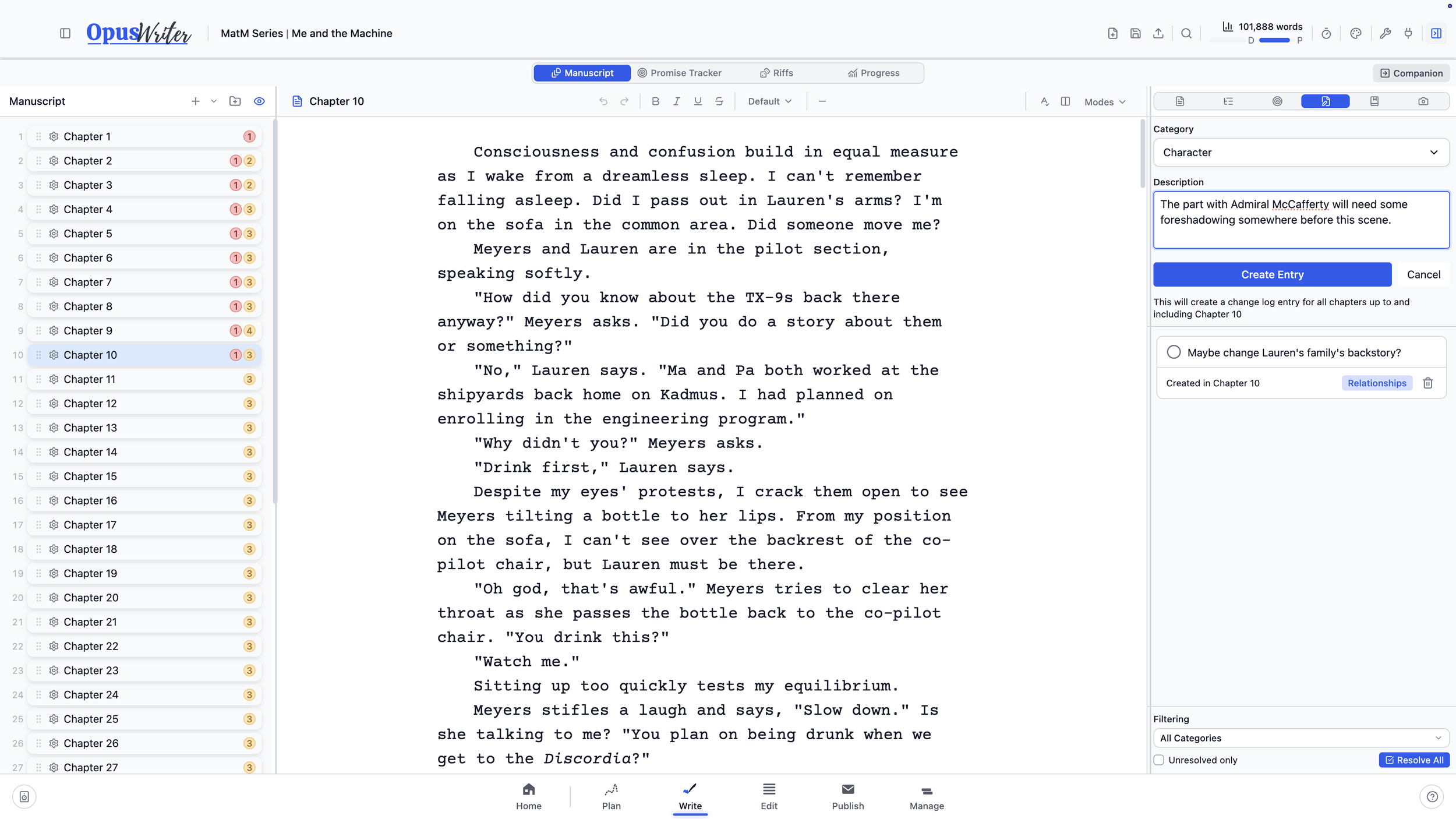
Other discoveries point backward. When a decision in Chapter 10 changes what must already be true in Chapter 3, add it to the Change Log. OpusWriter marks the earlier chapters that may need attention, then lets you clear them one by one as you revise.
Promises keeps track of what the story owes later. The Change Log keeps new discoveries from contradicting what came before.
Change your mind without losing the work
Move an uncertain chapter into the Stash and it leaves the manuscript without being deleted. Bring it back later, or open it beside your current draft when you want to recover a passage or try another approach.
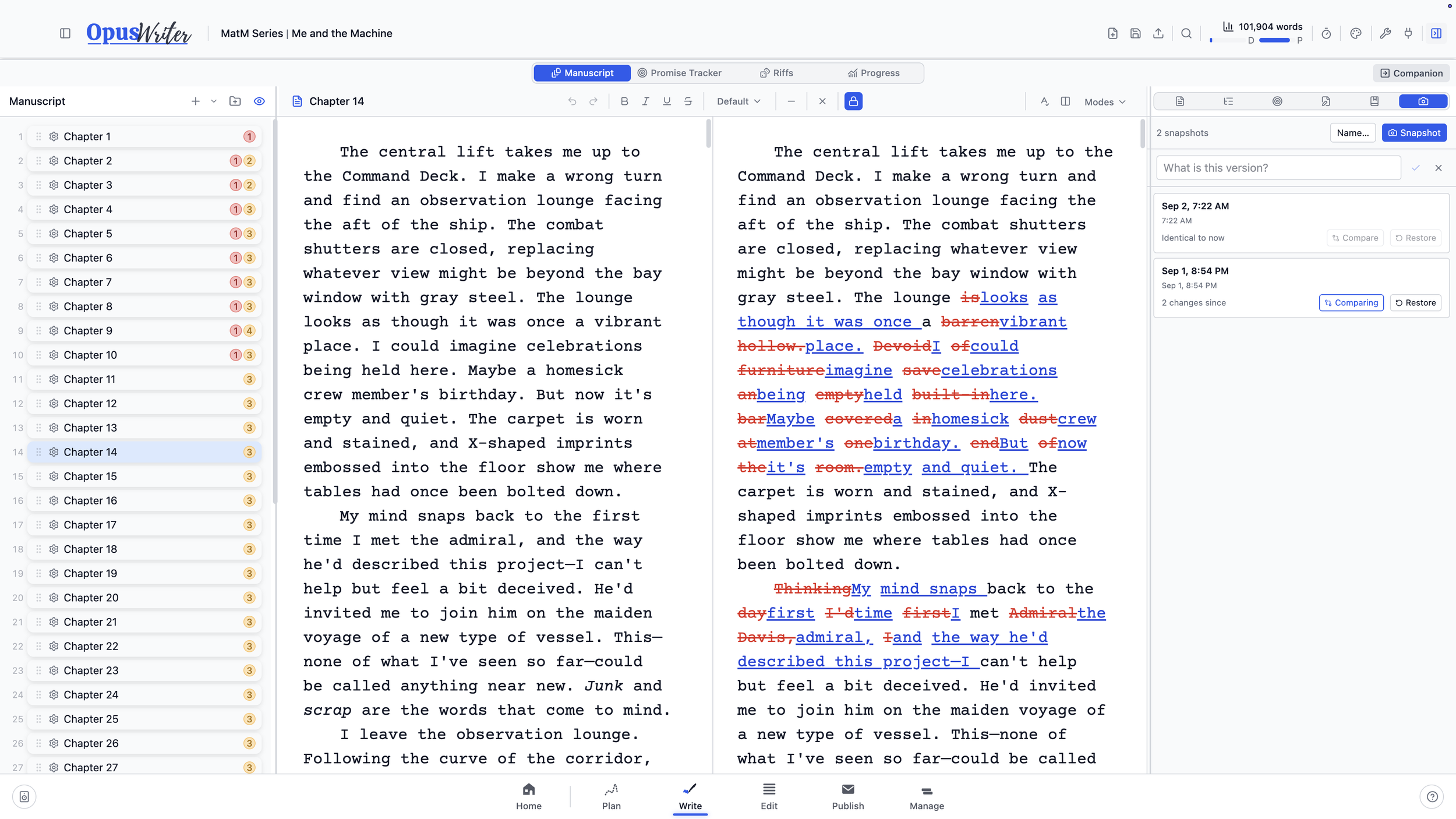
Snapshots preserve a chapter at a particular moment. Compare one with the current draft to see what was added, removed, or rewritten, then restore the earlier version if you prefer it. OpusWriter takes another safety snapshot before restoring, so changing your mind doesn’t erase the draft you just left behind.
Make the page fit the session
Focus hides everything but the page. Typewriter keeps the current line centered. Continuous lets the chapters read as one long document, while Pages gives the draft the familiar shape of stacked sheets.
Dualscreen opens two chapters beside each other, with optional synchronized scrolling for close comparisons. You can also adjust the writing width, font, and page zoom until the manuscript feels comfortable on your screen.
None of these modes changes the book itself. They only change how you work with it.

Mark meaning while you write
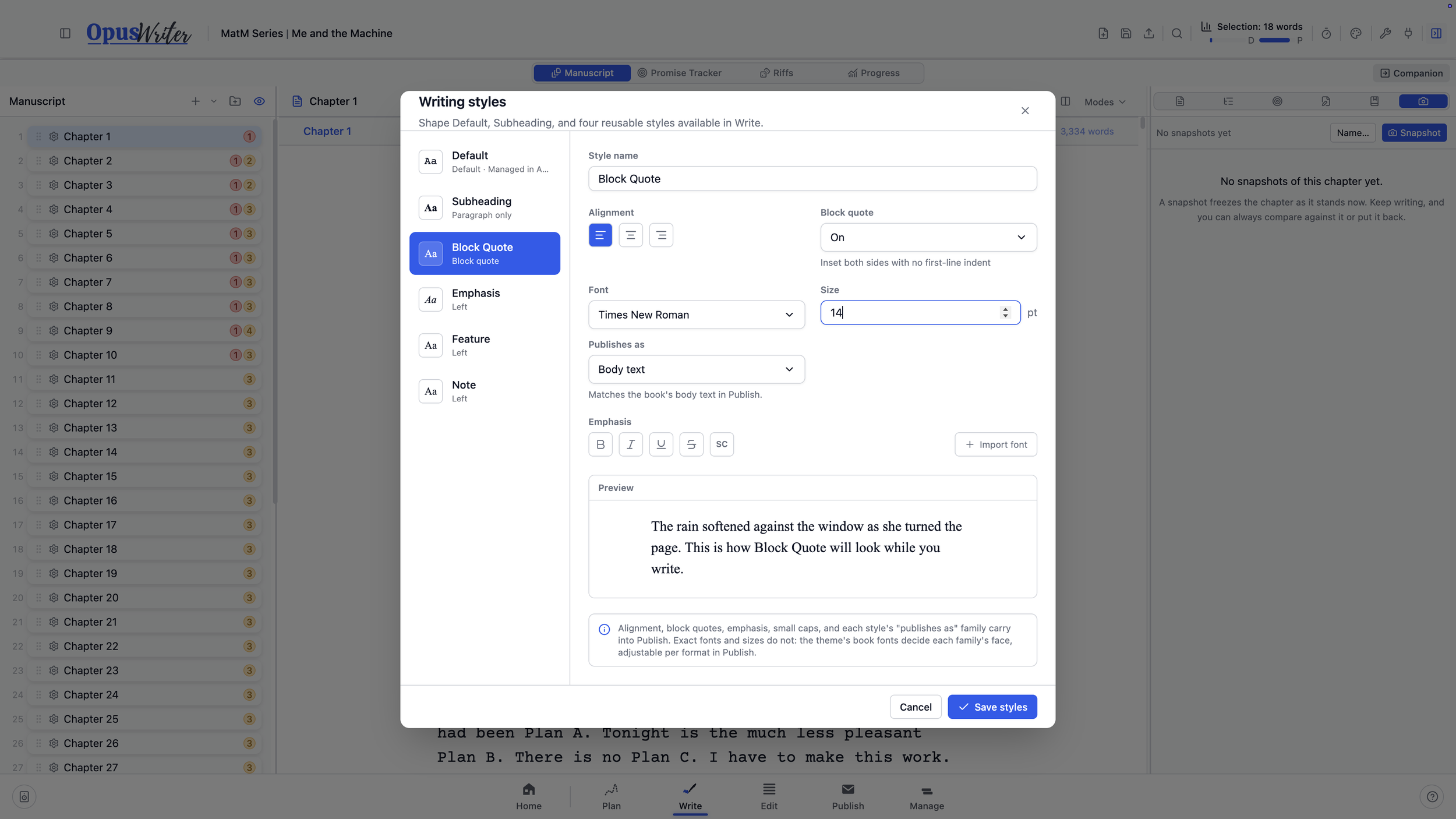
Styles in Write aren’t limited to making the draft look a certain way. They identify the role a passage plays in the book.
Those choices carry into Publish, where a chapter title, block quote, letter, scene break, or other element can be formatted differently for paperback, hardcover, and ebook without creating separate copies of the manuscript. The structure follows the words; the final appearance can wait until you’re ready to decide it.